> For the complete documentation index, see [llms.txt](https://docs.secondlive.world/llms.txt). Markdown versions of documentation pages are available by appending `.md` to page URLs; this page is available as [Markdown](https://docs.secondlive.world/secondlive-en/creator/specifications-for-clothing-blank-template-designs/instructions-for-gltf-pbr-shader.md).
# Instructions for GLTF PBR Shader
* Metallic Shader
Use this shader when the material is metallic.
* Rendering Mode: opaque/culling/blending
* Base Color: diffuse color
* Apply Vertex Colors: Whether to receive the vertex color in the model
* Metal Rough: Metal roughness texture. The G and B channels of the texture represent: roughness and metalness respectively. Note that sRGB is not ticked for this texture.
* Metallic: metallic degree. The final effect will be multiplied by the B value in the Metal Rough.
* Roughness: roughness. its final effect will be multiplied by the G value in the Metal Rough.
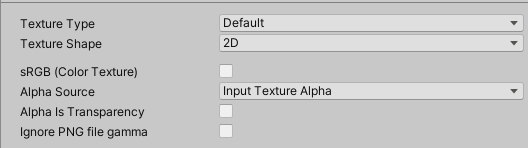
* Normal Map: note that the Texture Type in the unity property of this map is Default (do not select Normal Map), and do not check the sRGB option, as shown below:
* Occlusion: AO map
* Emissive: Self-illumination map/color
* Non-metallic Shader
Use this shader when the material is not metallic.
* Rendering Mode: opaque/culling/blending
* Base Color: diffuse color
* Apply Vertex Colors: whether to receive vertex colors in the model
* Spec Gloss: Specular gloss color
* Glossiness: Glossiness intensity
* Normal Map: note that the Texture Type in the unity property of this map is Default (do not select Normal Map), and do not check the sRGB option, as shown below:
* Occlusion: AO map
* Emissive: self-illumination map/color